User Guide
Everything you need to know to get the most out of Splitko.
Getting Started
Create Your Account
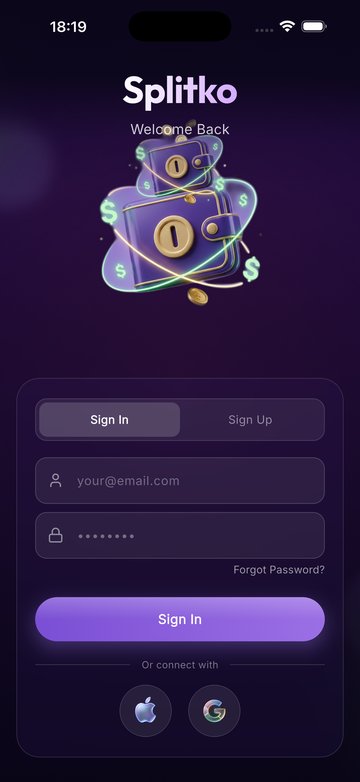
Open Splitko, tap Sign Up, enter your name, email, and password. You can also sign in with Google or Apple. Verify your email with the code sent to your inbox.
Managing Groups
Create and Join Groups
Create a group for any occasion. Set the currency, invite members by email, show the QR code or share the invite link. Each member gets a role: Owner, Admin, Member, or Viewer.
Inviting friends without the app
Share an invite link or QR code — it opens the app straight to the join flow. Friends without Splitko can register right after tapping it; the invite is remembered through sign-up.
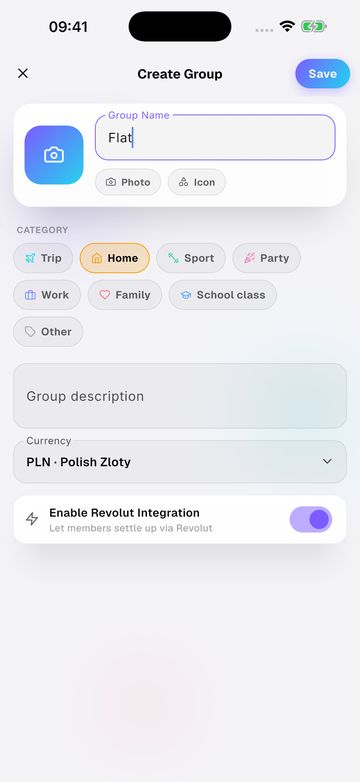
1Create a group
Give it a name, pick a category and currency. Revolut payments are on by default.
Add → New group → Create Group
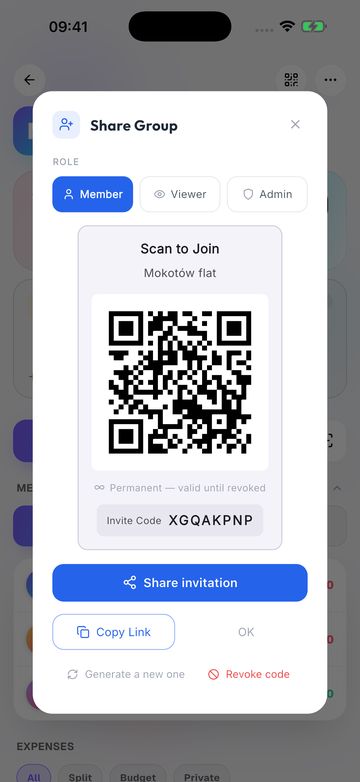
2Invite people
Pick a role and invite by email, share the link or let friends scan the QR code. Friends without the app land in the group right after sign-up.
QR code → Share invitation
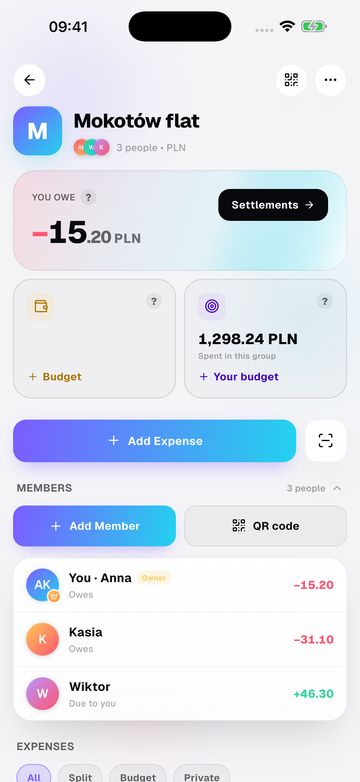
3See the group at a glance
The group screen shows what you owe or are owed and each member's balance.
Groups → group
Expenses and Receipts
Adding Expenses
Tap + to add an expense. Choose who paid and how to split: equally, by percentage, or by scanned receipt items.
AI Receipt Scanner
Snap a photo of your receipt and AI reads every item, translates item names into your language and suggests a category. Assign items to whoever ordered them — exact amounts are calculated for you.
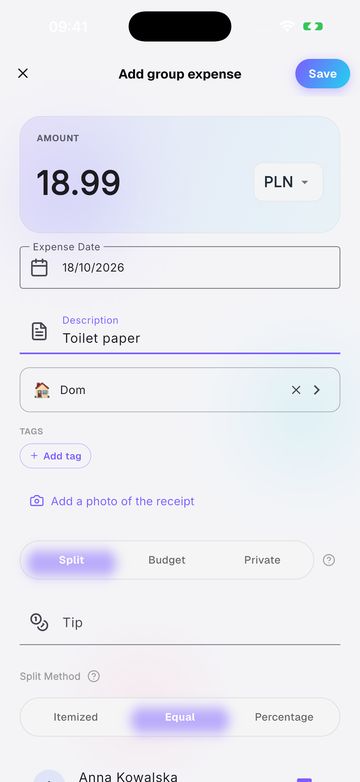
1Add an expense
Enter the amount, a description and the date, and pick a category.
group → Add Expense
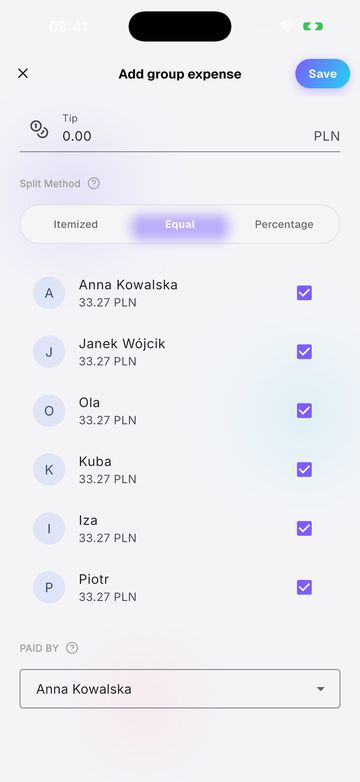
2Choose how to split
Split equally, by item or by percentage, tick who takes part and choose who paid.
Split Method → Paid by
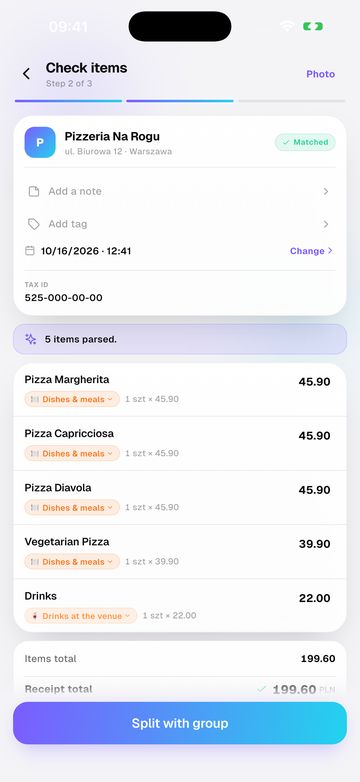
3Scan the receipt
AI reads every line, its price and the shop. Check the lines and continue.
Add Expense → Scan Receipt · AI → Check items
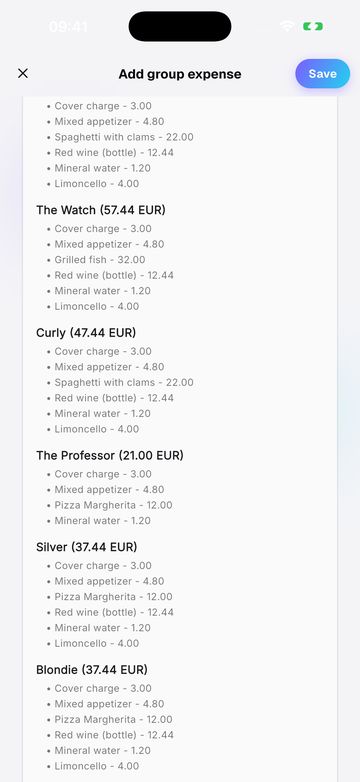
4Assign lines to people
Tick who had each line. A shared line is divided among the people on it, and everyone's total is calculated.
Split with group → Participants
Group Budget
Collect money upfront for shared costs. Expenses from the pool do not create individual debts.
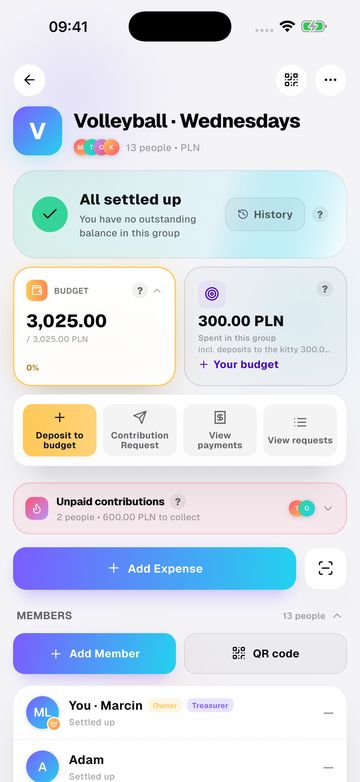
1Open the group budget
Deposits, contribution requests and the payment history are one tap away.
BUDGET card
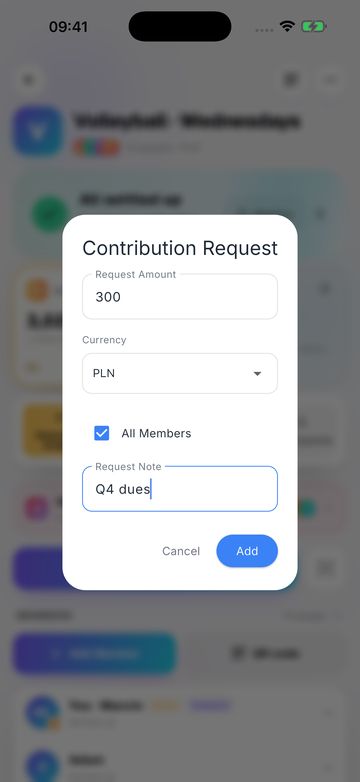
2Ask for a contribution
Enter the amount, choose All Members and add a note. Everyone gets the request with a Revolut button.
BUDGET → Contribution Request
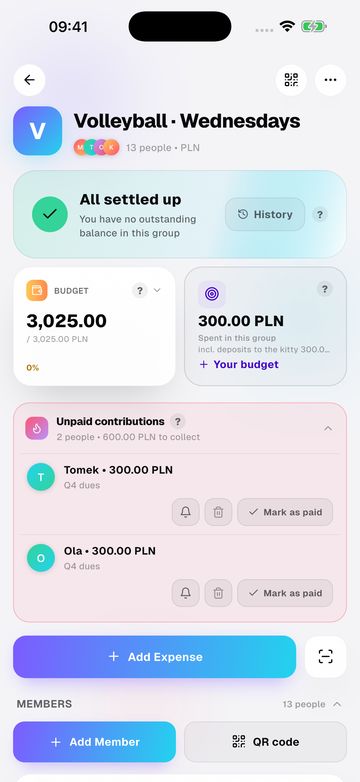
3See who still owes
Unpaid contributions lists who hasn't paid. The bell sends a reminder, and Mark as paid records a payment by hand.
Unpaid contributions → bell / Mark as paid
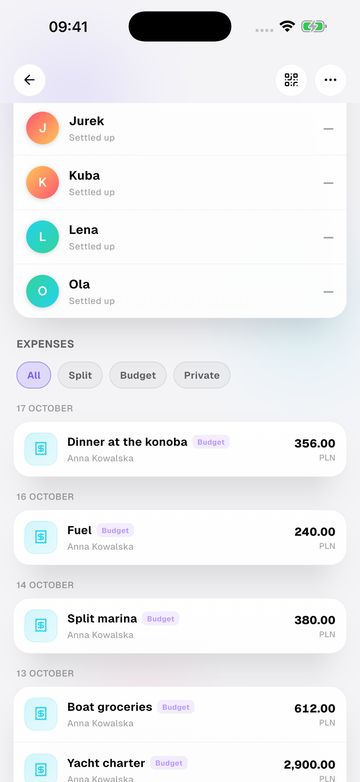
4Pay from the budget
When you add an expense, choose Budget: it's paid from the pool and creates no individual debts.
Add Expense → Budget
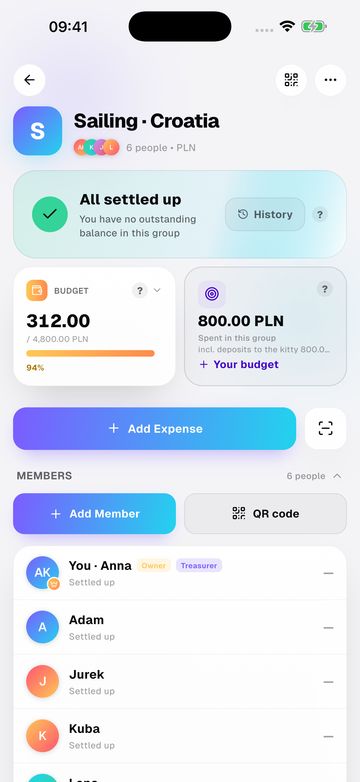
5Watch what's left
The budget card shows how much of the collected money is left.
group → BUDGET card
Household Budget
Your month, from receipts
The Budget tab tracks your household spending: scan a receipt and every line lands in its own category. Set monthly category limits, browse the shops you buy from, check a product's price history, and keep warranties saved from receipts — with a reminder before they lapse.
Recurring costs
Add rent, internet or subscriptions once — Splitko reminds you before each due date and shows how much of the month is already spoken for. You can also import your share of group expenses into the household budget.
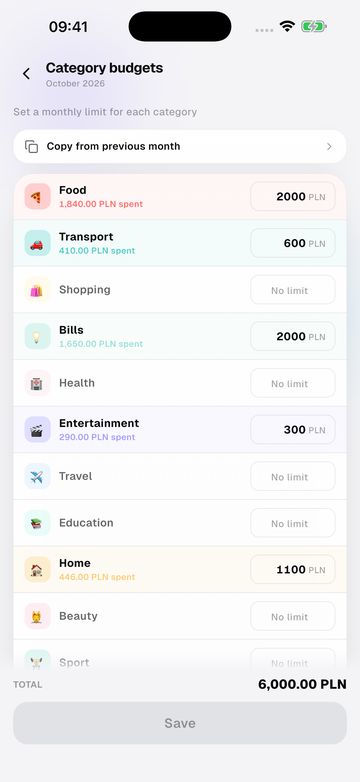
1Set category limits
Give each category a monthly limit; the total adds up by itself.
Budget → Edit budget → Category budgets
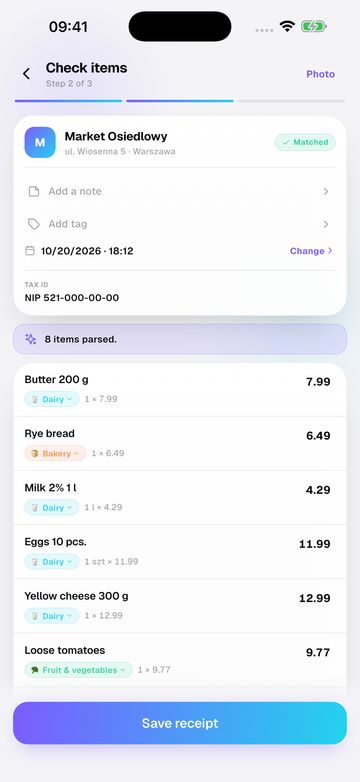
2Scan your shopping
Every line of the receipt lands in its own category.
Budget → Scan receipt → Check items
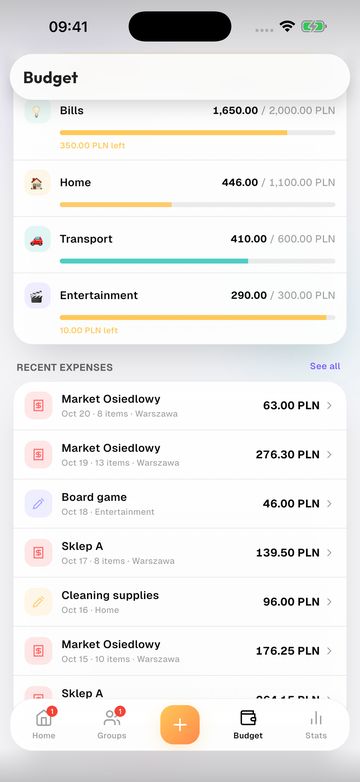
3See what's left this month
Bars show each category against its limit.
Budget
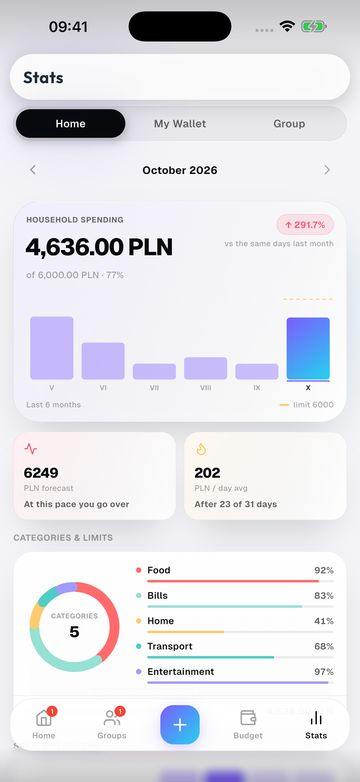
4Check the statistics
Spending by category, the trend against last month and a forecast for the month.
Stats → Home
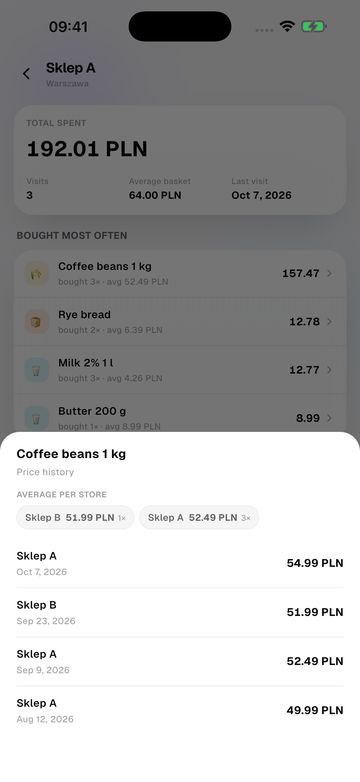
5Follow a product's price
Every product keeps its price history, across all the shops you buy it in.
Budget → Stores & items → store → item
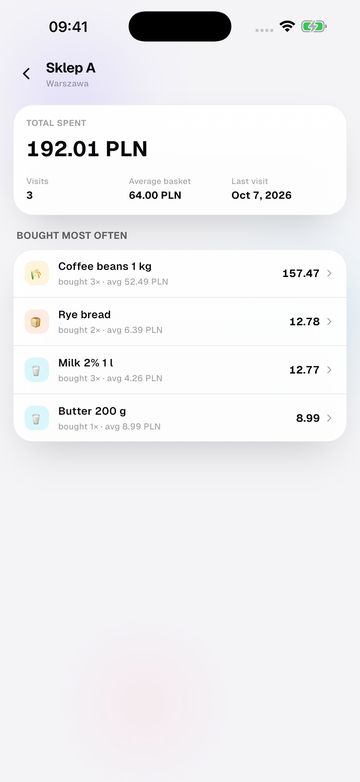
6Compare shops
Each shop has a profile: total spent, visits, average basket and what you buy most.
Budget → Stores & items → store
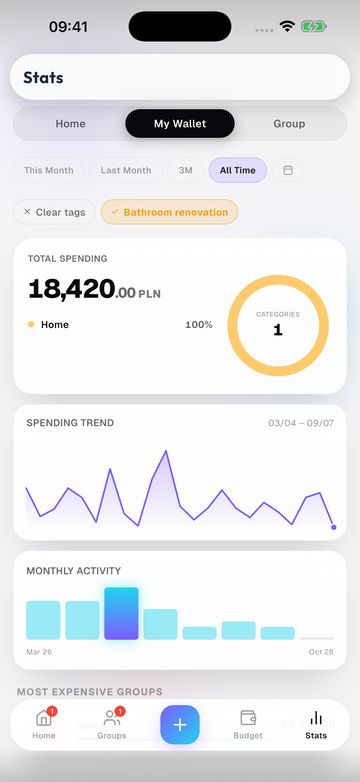
7Tag a project
Tags gather expenses a category can't hold, like a renovation; statistics show the tag's total.
Check items → Add tag · Stats → My Wallet → tag
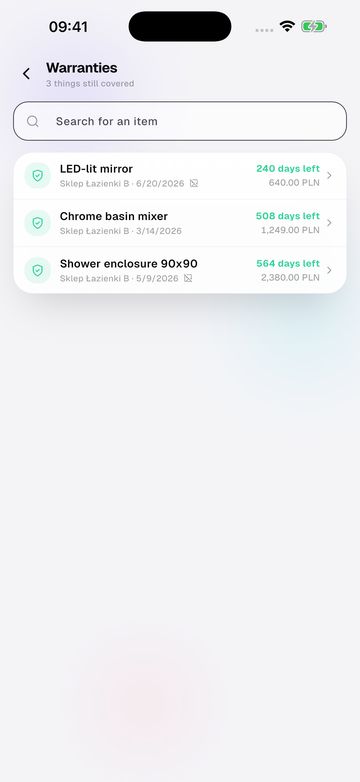
8Keep your warranties
Save a warranty from the receipt; the app shows how many days are left and reminds you before it lapses.
Budget → Warranties
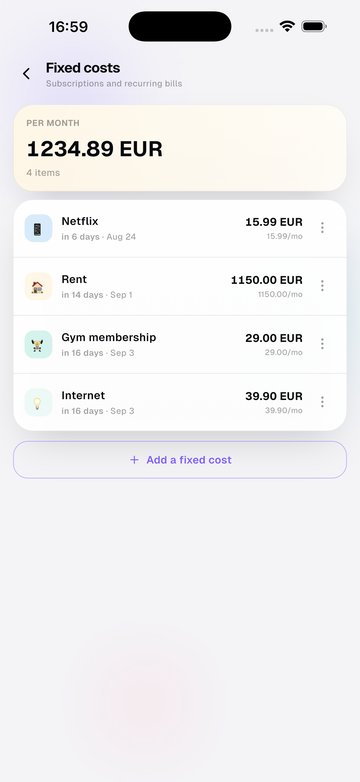
9Add recurring costs
Add rent, internet or subscriptions once, with a reminder before each due date.
Budget → Recurring
Settlements and Revolut
Smart Debt Optimization
Splitko calculates the minimum transfers needed to settle the group.
Pay with Revolut
If “Enable Revolut Integration” is on in the group settings and the person you owe has added their Revolut Tag in their profile, a “Pay” button with the Revolut logo appears next to the transfer. One tap opens Revolut with the amount and recipient pre-filled; afterwards you mark the transfer as paid in Splitko and the recipient confirms it.
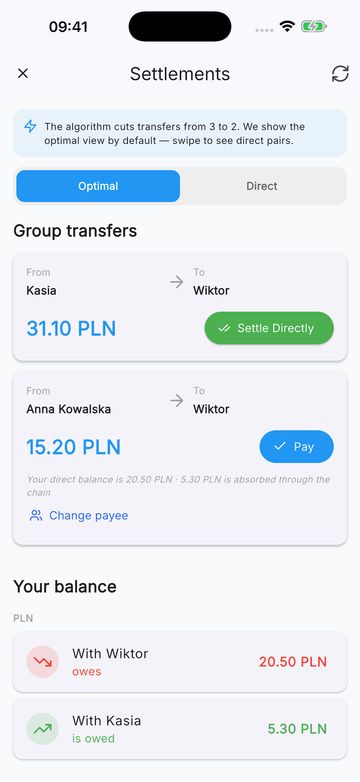
1Open Settlements
Splitko shows the fewest transfers that clear the whole group.
group → Settlements
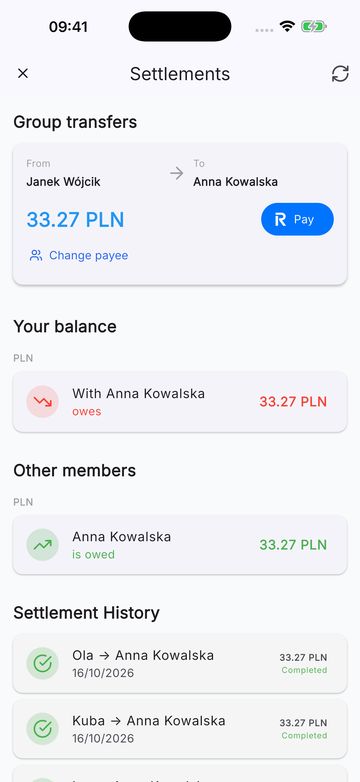
2Pay with Revolut
Tap Pay: Revolut opens with the amount and recipient filled in. After the transfer, the app asks whether it went through.
Settlements → Pay
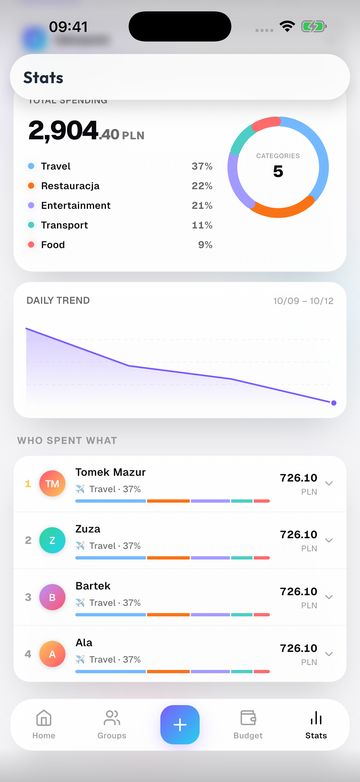
3See who spent what
Group statistics show the total and each person's real share of it.
Stats → Group
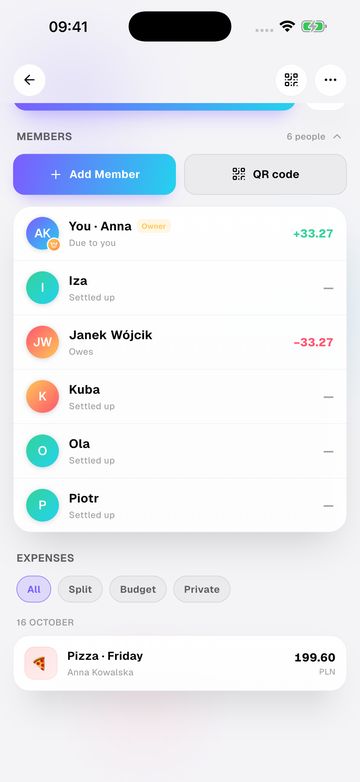
4Check who's settled up
Members who have paid show Settled up; the rest still show what they owe.
group → Members